
Google Fonts GDPR Check: Test Your Site in 1 Minute
Your website might be sending your visitors’ IP addresses to Google without asking them. Not through analytics or tracking pixels, but through something most people never think about: fonts. It’s known as the Google Fonts GDPR issue, and it takes a minute to check.
Why fonts can be a privacy problem
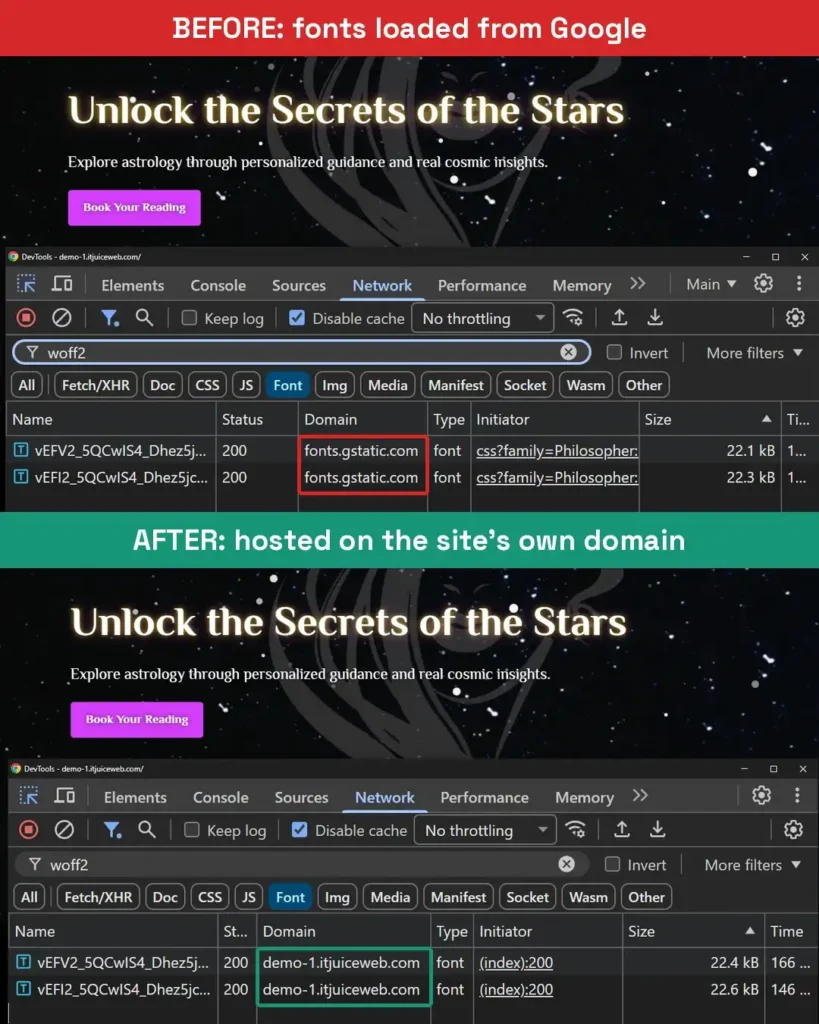
Many WordPress themes and page builders use Google Fonts. By default, they often load them straight from Google’s servers, from fonts.googleapis.com and fonts.gstatic.com.
That means every time someone opens your page, their browser connects to Google to download the font. Like any connection, it includes the visitor’s IP address, and under GDPR an IP address counts as personal data (Recital 30 names IP addresses directly).
Your visitor never agreed to that. In most cases, neither did you. The theme simply did it by default.
The Munich ruling that started it
In January 2022, the Regional Court of Munich (Landgericht München I, case 3 O 17493/20) ruled that a website owner breached GDPR by loading Google Fonts from Google without the visitor’s consent. The court awarded the visitor €100 in damages (summary by IHK, the German Chamber of Commerce).
€100 doesn’t sound like much. The problem was what followed: a wave of warning letters to website owners across Germany, each asking for a similar payment. Courts and prosecutors later pushed back against many of those letters, but for a small business owner, receiving one is still stressful and costs time.
In Germany this is often called the Google Fonts DSGVO issue (DSGVO is the German name for GDPR). It matters most for sites with visitors in the EU, but the fix is so simple that it makes sense for any website.
How to check your website in one minute
All you need is Chrome. Edge and Firefox work almost the same way.
- Open your website in Chrome.
- Right-click anywhere on the page and choose Inspect.
- Click the Network tab and tick Disable cache.
- Click the Font filter.
- Reload the page (F5 or Ctrl+R).
- Look at the Domain column (how the Network panel works). If you don’t see it, right-click any column header and enable Domain.
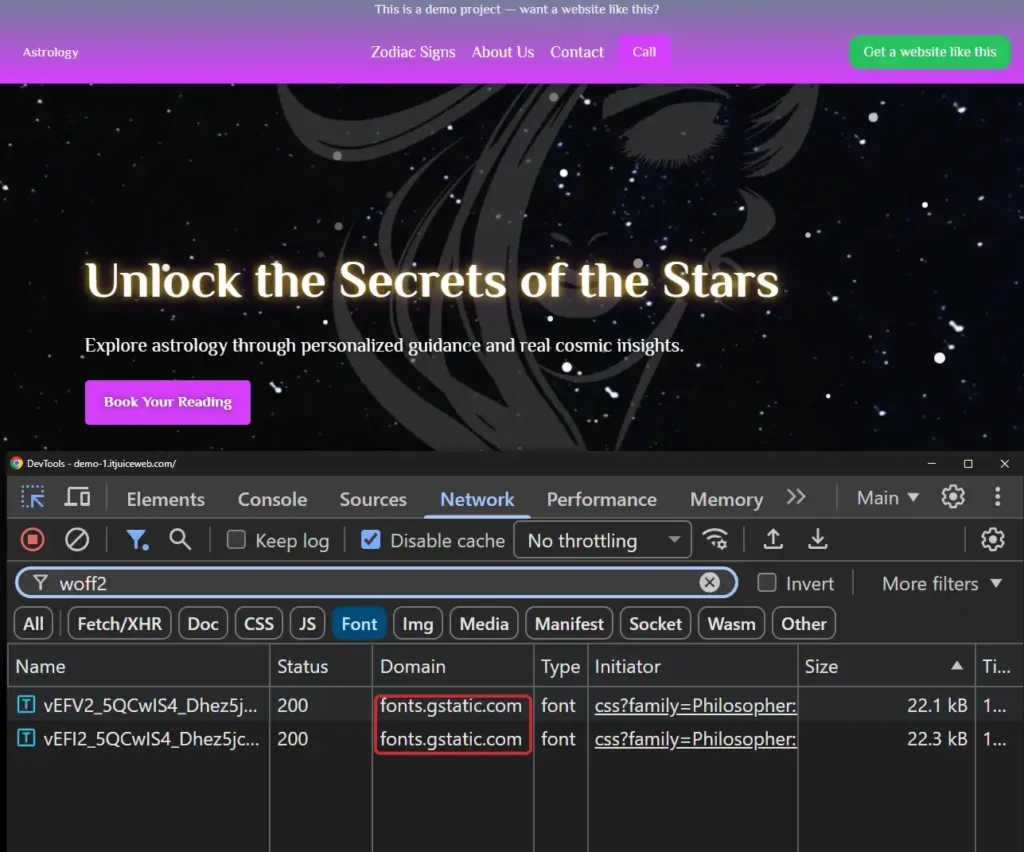
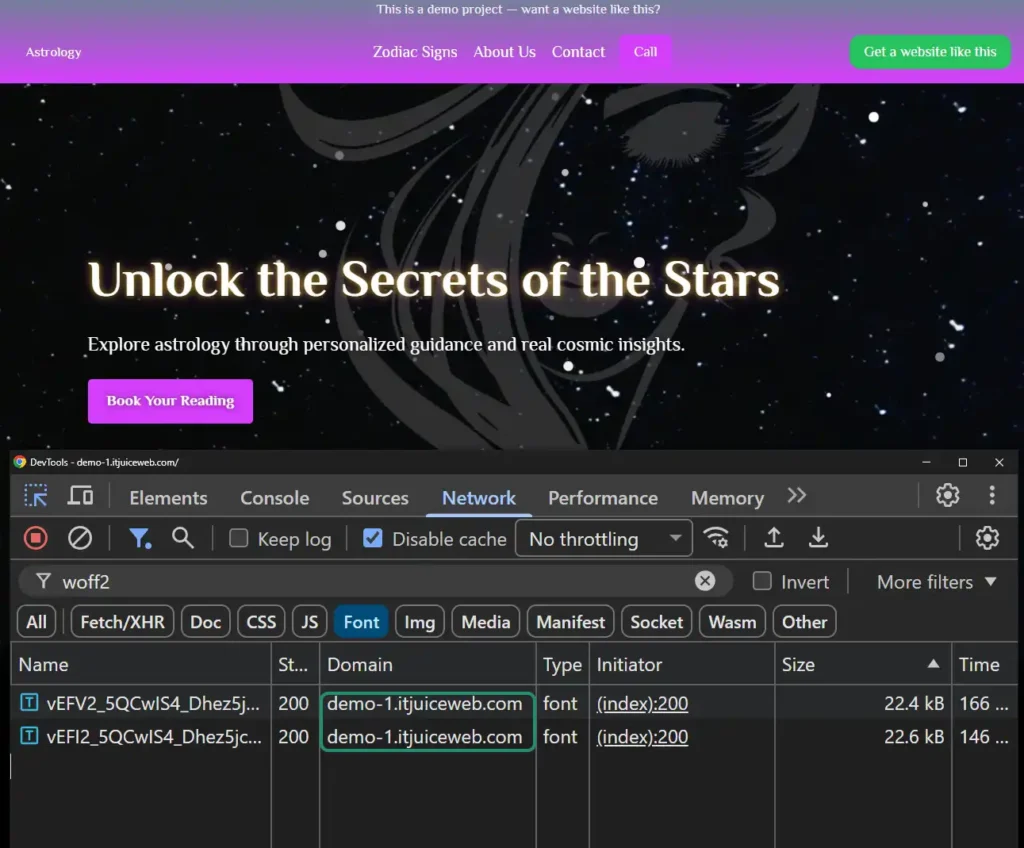
If you see fonts.gstatic.com, your fonts come from Google. If they load from your own domain, you’re fine.
To double-check, click All and type google in the filter box. If nothing from fonts.googleapis.com or fonts.gstatic.com shows up, your fonts are local. Check a few pages, not just the homepage, because some plugins load fonts only on specific pages.
How to fix it: host the fonts on your own server
The fix is to download the fonts once and serve them from your own server. The site looks exactly the same, and visitors’ browsers never connect to Google.
In the Kadence theme, it’s one switch: go to Appearance → Customize → General → Performance and turn on Load Google Fonts Locally, then click Publish. It’s part of the free theme, no extra plugin needed (Kadence documentation).
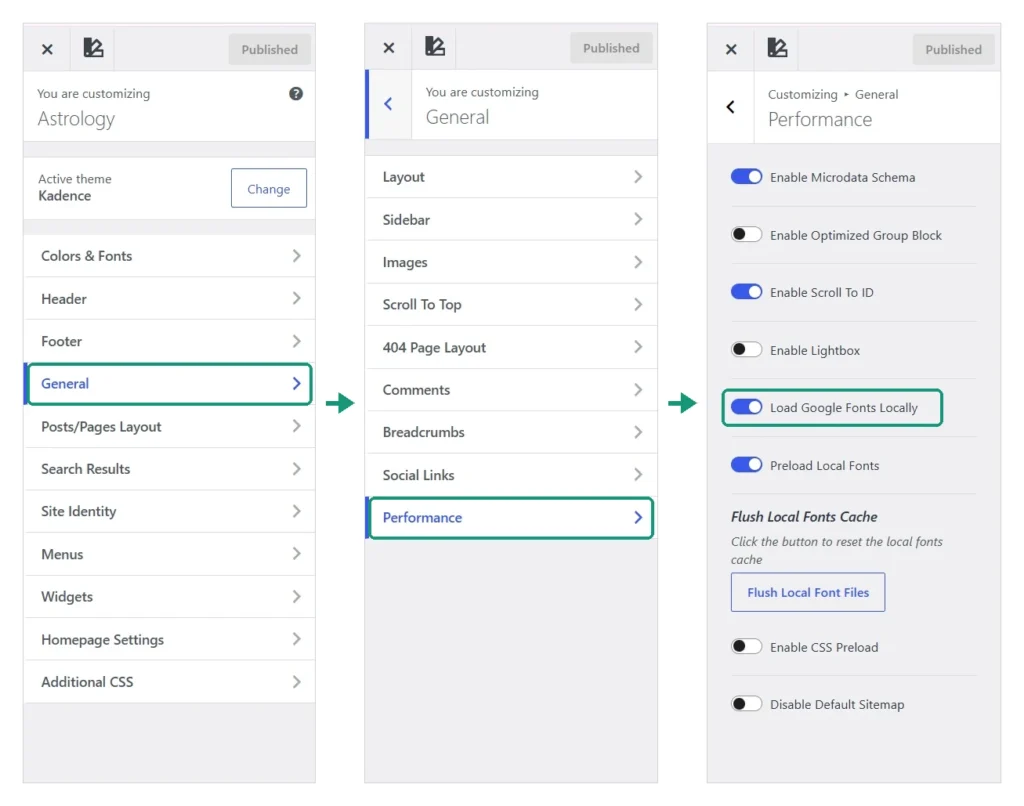
Many other themes and page builders have a similar option, usually under performance or typography settings. If yours doesn’t, a plugin such as OMGF (Optimize My Google Fonts) can do the same job.
After the change, clear your cache (caching plugin, server and CDN), then run the check again.
If Google still shows up
Fonts can also come from somewhere other than the theme: a plugin, a page builder block, a slider, or embedded content such as Google Maps or reCAPTCHA. The Initiator column shows which file asked for the font, which tells you where to look. Embedded Google services need their own fix or a consent banner.
One of the small things worth checking
This article isn’t legal advice. It’s one of the technical checks I do on every site I build or maintain, because it takes a minute and removes a risk nobody needs.
Small details like this are part of every project. Here’s what that looks like on a real online shop: the Brend Računari case study.
Want a second pair of eyes on your website? Get in touch and I’ll tell you what I’d fix first.
